

User Manual
Pharmacy/ Pharmacist Flow
Registration Module 2
SignUp Form of Pharmacy :
Step 1: Fill the following fields as
- Name
- Postal Code
- User name
- telephone number
- Accreditation
- Fax
- Street
- Email city
- Pharmacy type
- province
Step 2: Click the “I Agree” Option to accept terms and conditions.
Step 3: Submit for registration and check the inbox for password reset mail
Step 4: Click the link from email and reset the password
Step 5: Reset the password and login to see the Pharmacy dashboard
In Pharmacy dashboard
Create Internal Pharmacist :
Step 1: Click Create Internal Pharmacist
Step 2: Fill the Fields
- First Name
- Last Name
- Phone
- Province
- Select an option
- Address
- Street
- City
- Province
- Postal code
- Country
Step 3: Click submit
Step 4: Internal pharmacist will be created
Add Pharmacy
Step 1: Select the add pharmacy tab
Step 2: Search the registered pharmacy
Step 3: Add pharmacist to this pharmacy from the entire pharmacist list
View Pharmacy
Step 1: Select the View pharmacy tab
Step 2: Search the registered pharmacy
Step 3: Entire pharmacist list who works on respective pharmacy
Minor Ailment:
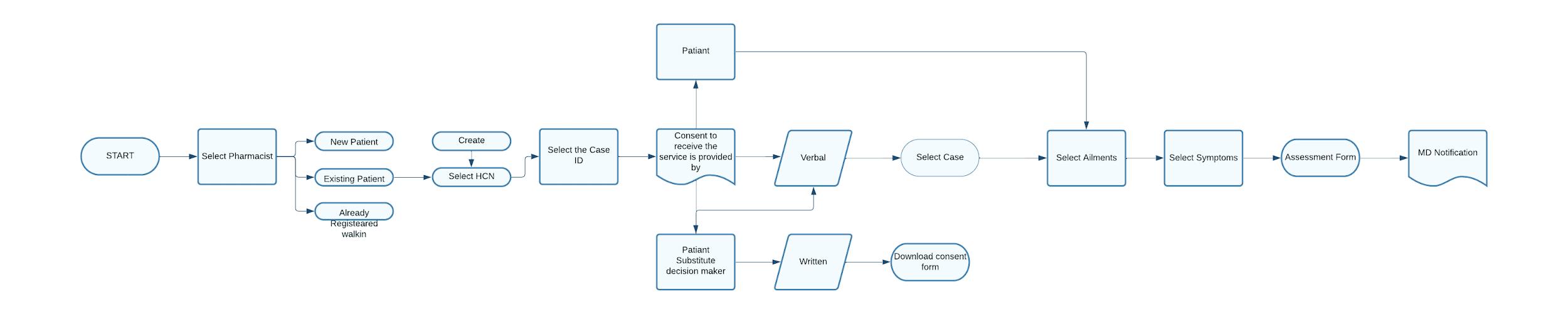
A. Select the pharmacist >
B. Register Patient >
C. New Patient >
D. Health Card Number >
E. Select the request >
F. Select the Patient >
G. Patient / patient subsidiary >
H. Fill the Ailment process >
I. Rationale >
J. Medication >
K. MD Notification
BioSimilar :
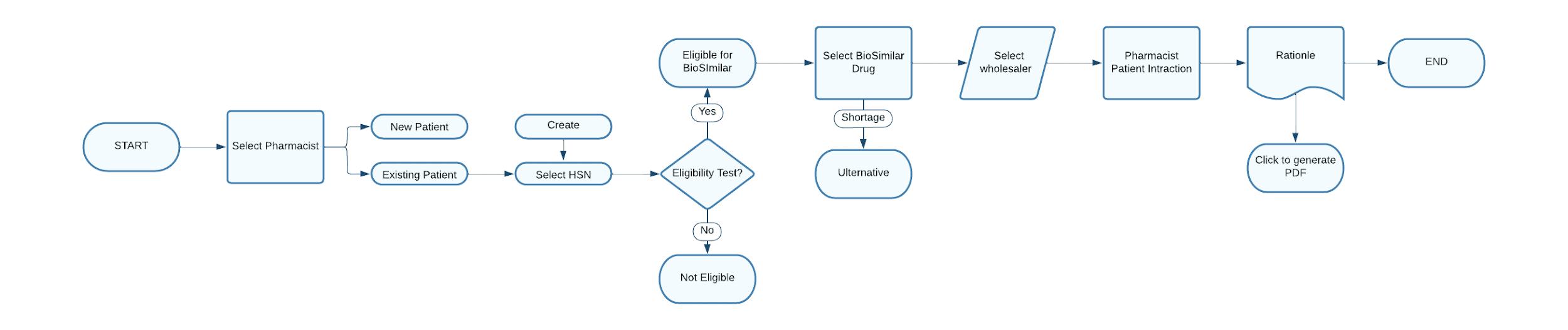
a. Select the pharmacist > b. Register Patient >
c. New Patient >
d. Health Card Number >
e. Select the request >
f. Select the Patient >
g. Patient / patient subsidiary >
h. Fill the Ailment process >
i. Rationale >
j. Medication >
k. MD Notification